
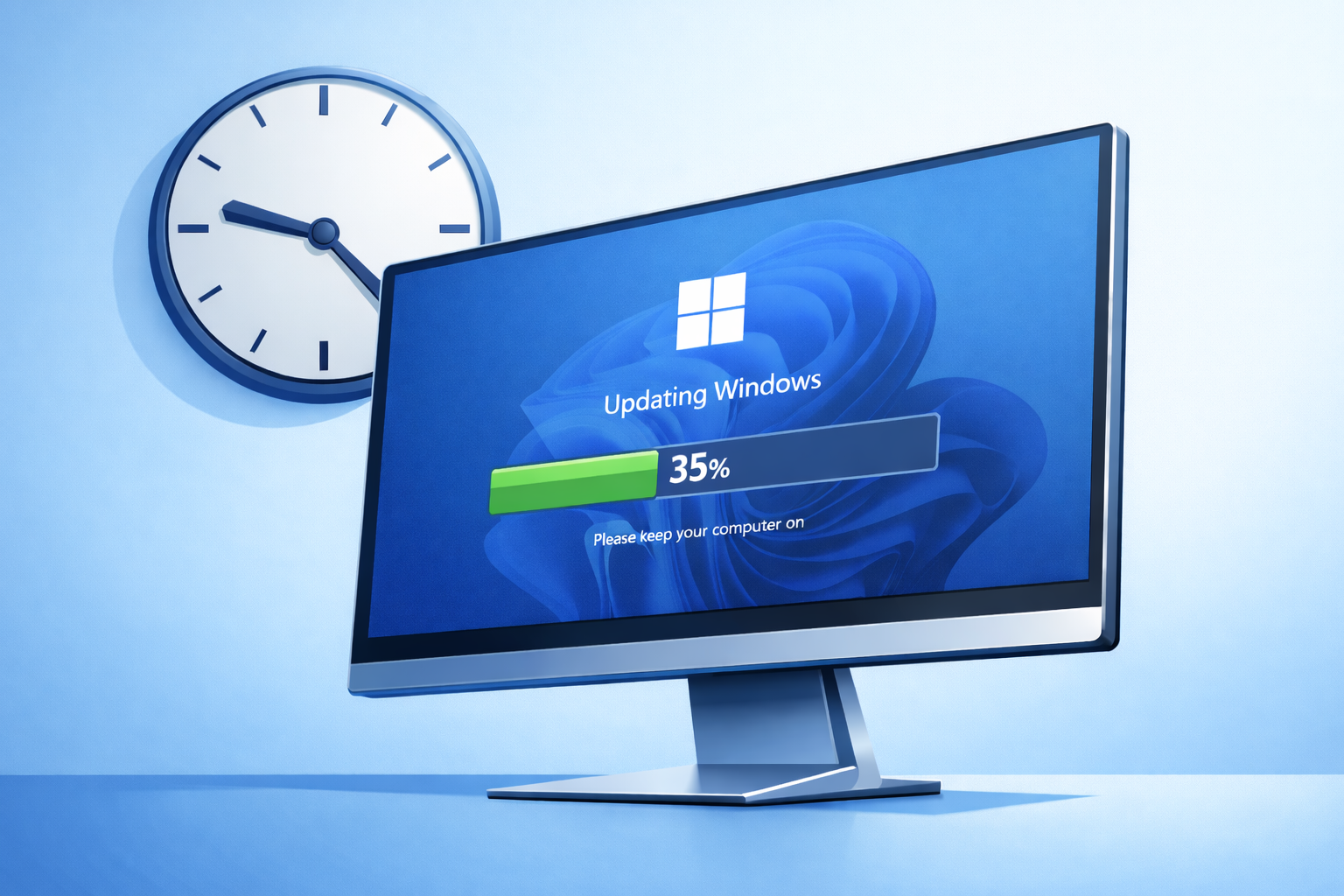
You needed your computer an hour ago, but instead you’re staring at a screen that says 35 percent complete, and it’s been saying 35 percent complete for the past 45 minutes. You can’t click anything, you can’t cancel it, and you’re starting to wonder whether forcing a restart will make everything worse.
The frustration is understandable, and the maddening part is that the screen looks exactly the same whether the update is quietly doing its job or completely hung.
Is it actually working?
Some updates genuinely take a long time, especially on older machines with a traditional spinning hard drive rather than a solid-state drive. Mechanical drives are dramatically slower when Windows is writing large update files, and if your machine also has limited RAM, Windows borrows the drive as a substitute for memory, which slows things down even further. On an older laptop, sitting at the same percentage for an hour isn’t automatically a sign something’s wrong; it can also mean the update is completely stuck.
A corrupted update file, a previous failed update that never cleaned up properly, or a drive with developing faults can all cause Windows to spin its wheels indefinitely, and the screen gives you no indication either way.
The only real clue available to you is the drive activity light, which is the small blinking indicator on the front or side of the computer. If it’s blinking steadily, something is happening, but if it’s been still for a long time, that’s a sign nothing’s moving.
The restart question
Microsoft’s advice is to wait it out, and that’s often right. The concern with forcing a restart is that you’re cutting off the update mid-process, which can leave files in a broken state.
That said, waiting four hours isn’t a realistic solution, and most people eventually reach the point where they hold the power button down.
What happens next varies. Windows is designed to roll back an incomplete update after a forced restart, and most of the time it does exactly that, with the machine rebooting normally after it says it’s undoing changes. Sometimes it loops, trying the same update again and getting stuck again; in worse cases, something partially installs in a broken state and the machine won’t start properly.
Why some machines keep doing this
A one-off stuck update is frustrating but not necessarily a warning sign, whereas a machine that gets stuck on updates repeatedly is telling you something.
The most common causes are a hard drive that’s developing faults and slowing down under load, a Windows update cache that’s become corrupted over time, or a machine that hasn’t been updated for so long that it’s facing a very large batch of accumulated changes at once. Low disk space also plays a role, as Windows needs working room to unpack and install update files.
The Windows Update troubleshooter (a built-in repair tool) can sometimes clear the issue, but it’s unreliable and won’t fix an underlying hardware problem.
When to stop guessing
That frozen update screen is not the problem. Guessing is.
Most people assume every stuck update just needs more time. Sometimes it does. Sometimes it is a warning that your drive, storage, or update system is already failing.
Old way is force a restart and hope.
New way is check the signal before you make it worse.
Here is a 5 minute move you can do today.
Next time Windows looks stuck, check the drive activity light. Blinking means work is happening. Dead silent for a long time means it is not.
If this keeps happening, stop rolling the dice. Repeated update failures are not bad luck. They are symptoms.
That is where Borked PC comes in. We check drive health, disk space, and update history so you know what is actually wrong before the next update bricks the machine.
👉 New to Borked PC? Start by filling out our quick Right Fit Questionnaire to see if Borked PC could be the right IT and Cybersecurity Partner for you.
📞 Or schedule a free 15‑minute call at a time that works for you: Book a call
Prefer to talk now? Give us a call at (610) 599‑6195.